
5 Steps to Set Up Custom Attribution in Meta Ads

5 Steps to Set Up Custom Attribution in Meta Ads
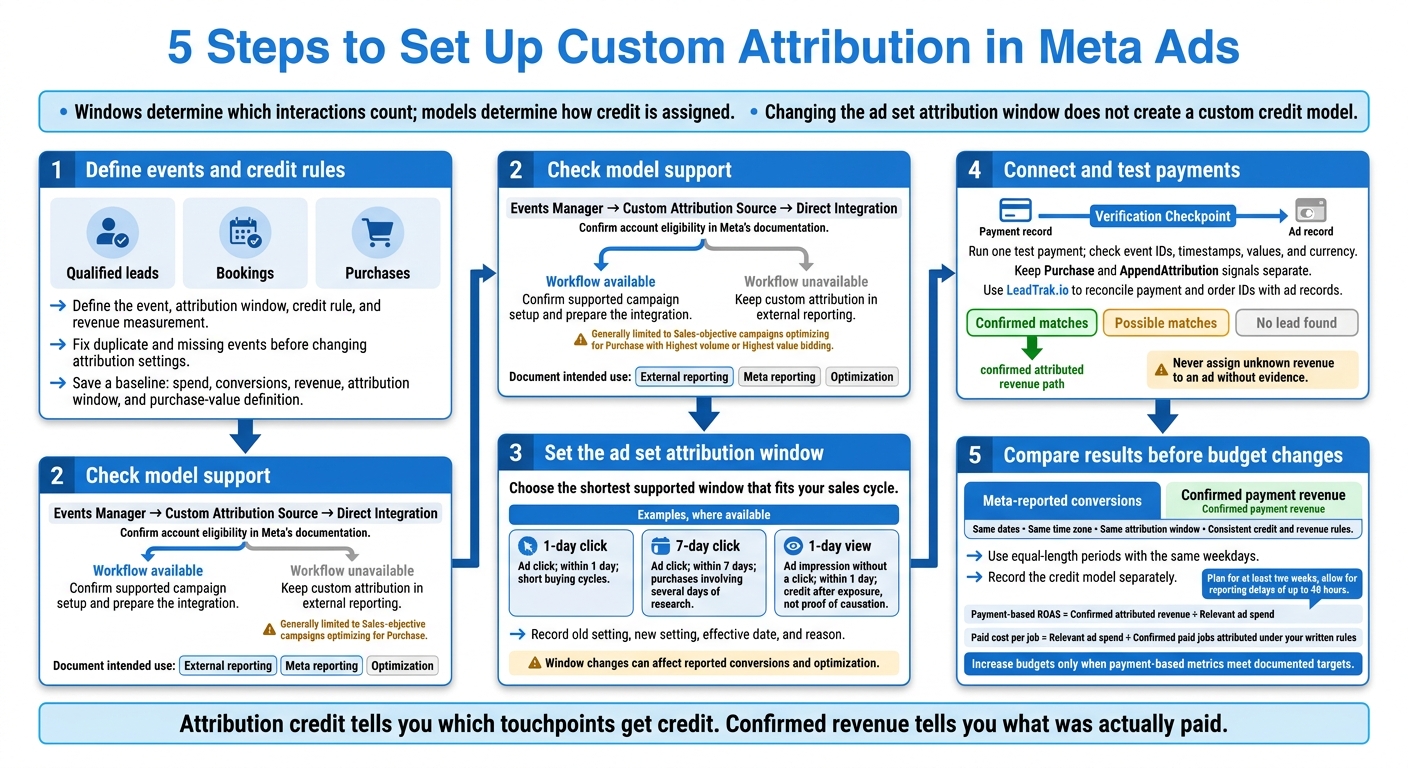
Changing your Meta attribution window does not create a custom credit model. I start by defining how ads get credit, checking what Meta supports, and keeping verified payments separate from reported conversions.
Here’s the five-step setup I follow:
- Define events and credit rules. Choose which actions count, how long ads can receive credit, and how revenue is measured.
- Check model support. Confirm whether your account can use custom attribution in Meta or needs external reporting.
- Set the ad set window. Pick a supported click or view window that fits your sales cycle.
- Connect and test payments. Check event IDs, prevent duplicate events, and use LeadTrak.io to link payments to ad records.
- Compare results. Use matching dates, windows, and revenue rules before making budget changes.
My rule: <u>don’t assign unknown payments to ads</u>. A 7-day click window sets a time limit for credit - not proof that an ad caused a sale.
5 Steps to Set Up Custom Attribution in Meta Ads
1. Define Events and Attribution Rules
With access confirmed, decide exactly which events and rules you'll measure. Compare Events Manager data with CRM and payment records, then document the event that marks each funnel stage. Fix duplicates and missing actions before changing attribution settings so your setup doesn't rely on bad event data. [5]
Choose Events, Windows, and Credit Rules
Keep qualified leads, bookings, and purchases separate. Define what counts as each milestone and which system verifies it. Choose a campaign setup that supports your attribution model, then record the event, window, and credit rule in your measurement plan. [1][3][4]
Windows determine which interactions count; models determine how credit is assigned. Base your windows on the time between a lead coming in and payment. Common options include 1-day click, 7-day click, and 1-day view, depending on availability. [2][6]
Before changing settings, export spend, conversions, and revenue for the same date range. Save the current attribution window and purchase-value definition, including how you handle discounts, tax, and shipping. Keep those definitions consistent when comparing results, and use this baseline to assess your next attribution change. [1][4][6]
Track Confirmed Revenue With LeadTrak.io
In LeadTrak.io, keep confirmed matches, possible matches, and “No lead found” payments separate. Use the Purchase event for the sale and record attribution separately. This keeps revenue distinct from platform-reported conversions. [1][3][4][6]
sbb-itb-db0d145
2. Check Support for Your Custom Model
Once you’ve defined your events and credit rules, check whether Meta supports the model you want to use.
Check Meta Integration Options
First, find out whether your model can run inside Meta or needs to stay in external reporting. Open Events Manager, select your dataset, and look for Custom Attribution Source > Direct Integration. Check Meta’s documentation to confirm your account is eligible. [6]
Custom Attribution is generally limited to Sales-objective campaigns that optimize for Purchase events using Highest volume or Highest value bid strategies. If this workflow isn’t available, keep custom attribution in external reporting. Changing the ad set attribution window does not create a custom credit model. [1][3][6]
If the workflow is available, assign permissions and document your data fields before launch.
Prepare Records and Assign Roles
Use a Conversions API access token. Document your event definitions, match keys such as event_id, ad_id, and order_id, and the hashed contact data used to reconcile records. Check which fields Meta requires and can use, and keep your written credit rules. [2][6]
Give each part of the setup a clear owner:
- Marketer: Approves the credit model.
- Developer or integration partner: Handles the attribution data handoff.
- Operating owner: Reviews failed requests or late records.
Before launch, specify whether the setup will support external reporting, Meta reporting, or optimization. [1][3][6]
Next, match the ad set attribution window to the model you confirmed here.
3. Set the Ad Set Attribution Window
Once you’ve confirmed the model, match the ad set’s attribution window to your documented rules.
Choose a Click or View Window
In Meta Ads Manager, open the ad set and click Edit. Under Optimization & Delivery, expand Show More Options to find the attribution controls. This setting lets you align Meta-reported conversions with the revenue window you’ve already defined.
Available settings depend on your objective, conversion location, and account features. If the control is missing, check the objective, conversion location, and account permissions before changing the window. [2][3]
Choose the shortest supported window that fits your sales cycle. The window only limits when an interaction can receive credit. [2][6]
| Setting, where available | Interaction type | Window | Sales-cycle relevance |
|---|---|---|---|
| 1-day click | Ad click | Within 1 day | Short buying cycles, including flash sales and impulse purchases |
| 7-day click | Ad click | Within 7 days | Purchases that involve several days of research |
| 1-day view | Ad impression without a click | Within 1 day | Credits purchases after ad exposure, but does not prove the ad caused them |
A 1-day view credits view-through conversions. It does not prove incremental revenue: some customers would have bought without seeing the ad. Keep that distinction clear when reviewing results that combine click-through and view-through credit. [2][6]
Record Changes Before Publishing
Before publishing, record the old setting, new setting, effective date, and reason. Keep ads, audiences, and budgets unchanged while you evaluate the adjustment.
A shorter window can lower reported conversions because it excludes later purchases. It can also affect optimization, so don’t treat this as a reporting-only edit. [1][2][6]
Use Meta Experiments for a split test when you need a clean comparison, and account for reporting lag before judging results. Plan for at least two weeks, with reporting delays of up to 48 hours. [1][2][4][7] Use this baseline when you reconcile payment records in the next step.
4. Connect Payments and Check Attribution
Test Events and Payment Links
Check that the payment record, ad touchpoint, and attribution value all survive the handoff.
Run one test payment and inspect the payload in your server logs or Events Manager export. Before the transformed payload reaches Meta, verify its event_time, attribution_value, currency, and event_id.[1][6]
The goal: check whether Meta’s credit matches the actual payment data.
| Check | Expected result | Correction |
|---|---|---|
| Event names | Standard purchases use Purchase; attribution passbacks use AppendAttribution. |
Update the event mapping and keep these signals separate. |
| Timestamps and time zones | Use UTC Unix seconds. event_time = passback time; original_event_data.event_time = purchase time. Send the passback within 48 hours. |
Check server clocks, timestamp conversion, and delivery queues. |
| USD values | Send USD only. Calculate the value as attribution_share × order value. |
Verify the calculation. Don’t send the full revenue amount to every touchpoint. |
| Event IDs | Use one stable event_id per model, order, and touchpoint. |
Add missing identifiers, but don’t generate a new ID for each retry. |
| Customer identifiers | Normalize and SHA-256 hash email and phone. Don’t hash fbc, IP address, or user agent. |
Fix normalization and hashing in the integration. |
| Browser/server deduplication | Matching Pixel and CAPI events share the same event_name and event_id for the same Meta Pixel ID. |
Align both event IDs. Don’t deduplicate AppendAttribution with Purchase. |
Event Match Quality does not validate custom attribution signals.[1][2][6]
Use LeadTrak.io to reconcile confirmed payments with first-touch and last-touch records. Compare individual payment and order IDs - not just revenue totals - with Meta’s reports and the Custom Attribution Source quality export. Before flagging a mismatch as an error, check reporting windows and differences between purchase and payment dates.[1][3][6]
Review Unmatched Payments and Adjustments
Check payments marked “No lead found” against processor and CRM records. Look for duplicate customers, manually entered leads, and missing click or ad identifiers. Review refunds, tips, and processing fees separately so they don’t distort revenue, and apply the same rules to every unmatched payment.[6]
Keep possible matches separate from confirmed matches. Record the evidence behind each correction, and make changes reversible where supported. Never assign unknown revenue to an ad without evidence. Save the test date, event-delivery results, payment IDs, confirmed and unmatched totals, adjustment rules, and unresolved tracking gaps.[5][6]
Save the reconciliation rules for Step 5 so you can compare results on the same basis.
5. Compare Results and Set Reporting Rules
Compare Periods on the Same Basis
Compare Meta’s credit with LeadTrak’s confirmed revenue using the same dates, time zone, attribution window, and reporting rules.
In Ads Manager, add Attribution Setting under Customize Columns where available. If your account supports it, use Compare Attribution Settings. Choose equal-length periods with the same weekdays, time zone, and attribution window. Record the credit model separately: a 7-day click window doesn’t make standard and custom credit rules identical.[1][2]
Use equal periods for your exports, too, and allow for the 48-hour processing lag before judging results.[1][3][4]
| Reporting detail | Baseline | Current |
|---|---|---|
| Reporting period | Record start/end dates and time zone | Use an equal-length period and the same time zone |
| Attribution window | Record click/view windows | Match baseline windows where supported |
| Credit rules | Record standard attribution rules | Record the custom rule set and version |
| Meta-reported conversions | Enter Ads Manager count | Enter Ads Manager count separately |
| Confirmed payment revenue | Enter LeadTrak confirmed revenue | Apply the same payment-date and revenue rules |
After comparing results, keep those rules fixed for future budget decisions.
Use Revenue Metrics for Budget Decisions
Use LeadTrak.io for payment-based reporting, with confirmed payments as your primary revenue metric. Keep attributed revenue separate from platform-reported conversions so every budget decision follows the same rules.[1][6][7]
| Metric | Purpose | Written decision rule |
|---|---|---|
| Platform conversions | Delivery monitoring | Investigate sudden drops; don’t change budgets on this metric alone. |
| Confirmed payments | Revenue reporting | Base revenue reporting on verified payments. |
| Payment-based ROAS | Budget evaluation | Confirmed attributed revenue ÷ relevant ad spend. Compare against your target. |
| Paid cost per job | Budget evaluation | Relevant ad spend ÷ confirmed paid jobs attributed under your written rules. |
| Profit | Scaling decisions | Confirmed revenue minus refunds, fulfillment costs, fees, and ad spend. |
Before you start the comparison, document your ROAS target and maximum paid cost per job. Specify which fulfillment costs and fees count toward profit. Increase budgets only when payment-based metrics meet those targets.[1][6][7]
Conclusion: Keep Attribution Credit and Revenue Separate
Those five steps work only when they share the same source of truth. Your setup isn’t complete until settings, tracking, and reporting line up with verified revenue.
Attribution credit tells you which touchpoints get credit. Confirmed revenue tells you what was actually paid. Leave unknown payments unassigned until you have evidence.
Use LeadTrak.io to reconcile payment records. Keep “No lead found” payments and possible matches separate from confirmed links. If those gaps affect budget decisions, ask Dancing Chicken for a Meta Ads audit or tracking strategy before increasing spend, so your attribution model reflects actual revenue rather than platform guesses.
FAQs
How do I track sales beyond Meta’s attribution window?
Custom attribution requires a qualified data source, an active Conversions API (CAPI) connection, and Sales-objective campaigns using Highest Volume or Highest Value autobidding. To set it up, select Purchase in your ad set, choose Custom under Attribution, and link your Custom Attribution Source (CAS).
For revenue-first tracking, consider LeadTrak. It connects your ad accounts, CRM, and payment processors to trace revenue back to customers. Any revenue it can’t match is labeled as unknown.
Can LeadTrak.io track revenue if custom attribution isn’t available?
Yes. LeadTrak.io connects your ad accounts, website, CRM, and payment systems to trace revenue back to specific ads - even when Meta’s custom attribution isn’t available.
It links payments to customers and their sources, labels unmatched payments “No lead found,” and keeps possible matches separate from confirmed links.
Use LeadTrak.io to guide budget decisions based on actual revenue and profit, not platform-reported conversions.
How much data do I need before changing ad budgets?
No specific data threshold is given. Before changing budgets, make sure your attribution data is reliable. Configure an external source through the Conversions API, select Custom attribution at the ad set level, and keep standard purchase events alongside attribution passback events.
We recommend LeadTrak to connect your ad accounts, CRM, and payment processors. This helps you assess budgets based on actual revenue, cost per job, and return on ad spend.