Form Design Checklist for High-Converting Meta Ads
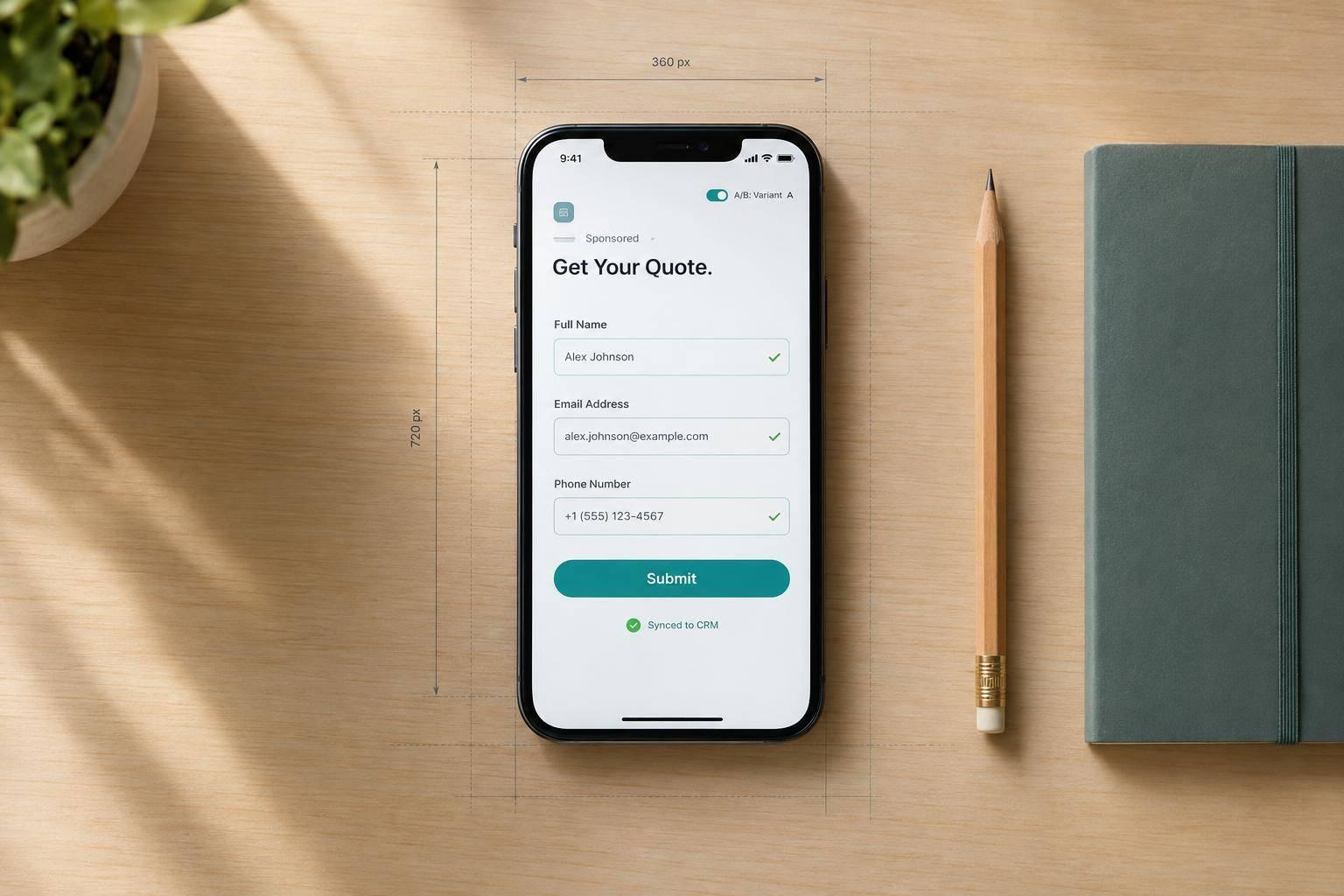
Form Design Checklist for High-Converting Meta Ads
I judge Meta ads that actually work by qualified leads—not submission count. For a simple download, I’d start with 3–4 fields and keep only questions needed to deliver the offer, qualify the lead, or plan follow-up.
Here’s what I check before launch:
- Goal and fields: Match the form to the ad’s promise and remove questions no one uses.
- Layout and access: Make labels, controls, and buttons easy to use on mobile, with keyboard and screen-reader checks for website forms.
- Errors and delivery: Test validation, consent, confirmation messages, CRM routing, and tracking from start to finish.
- Results and testing: Track completion rate, qualification rate, and cost per qualified lead. Then test one change at a time.
I check Meta Instant Forms and website forms separately because their controls differ. But my launch rule stays the same: <u>a success message alone isn’t proof that sales received the lead.</u>
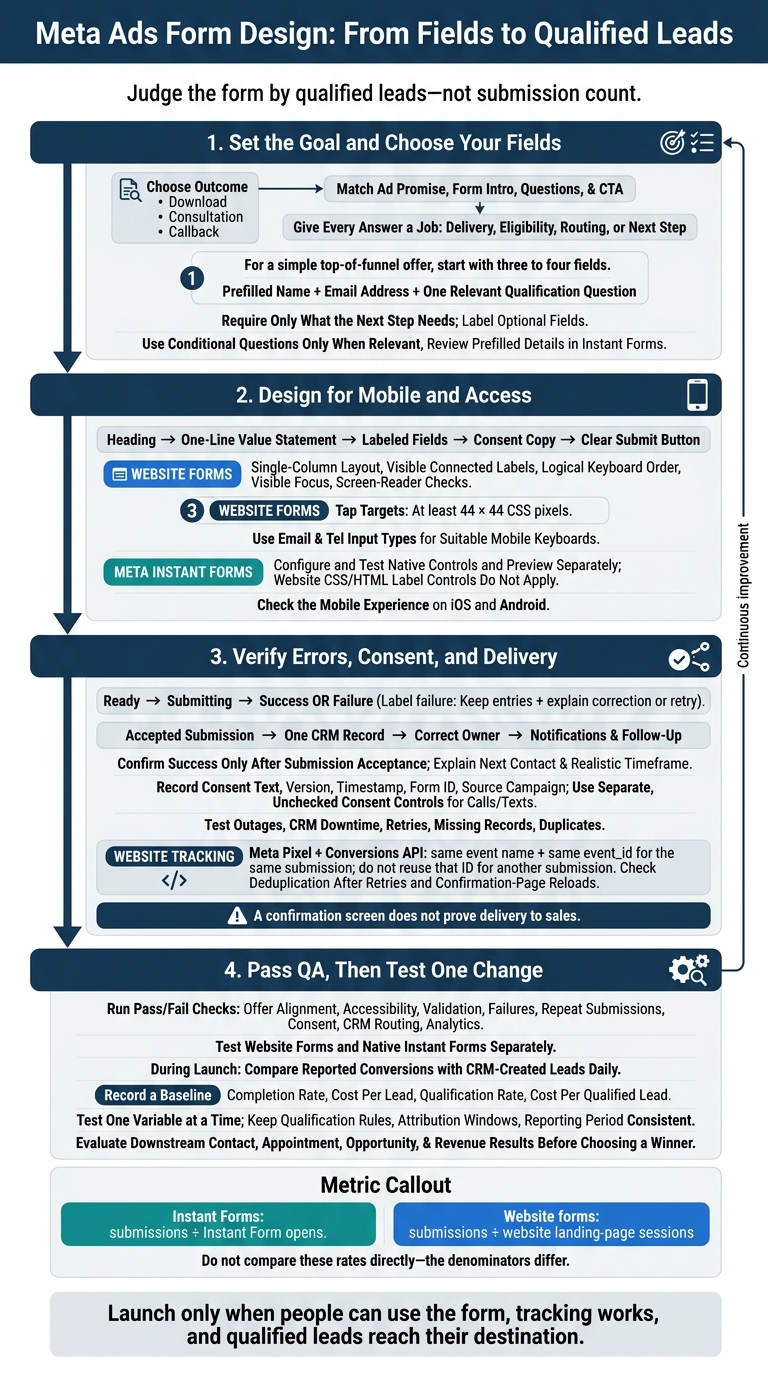
Meta Ads Form Design: From Fields to Qualified Leads
1. Set the Goal and Choose Your Fields
Match Questions to the Offer
Choose one outcome, then match every question to it. Focus on a download, quote request, consultation, or callback - not several unrelated goals. Match the ad headline, visuals, and CTA to the form intro and questions. Keep the offer details and wording consistent.
A download usually needs only contact details. A quote can justify project type, budget, location, and timeline.[7][8]
Give every answer a job. Record who will use it and which decision it supports: delivery, eligibility, routing, or the next sales step. Use multiple-choice answers for budget and timeline so sales can group leads without decoding free text.[3][6] Map answers to CRM fields or routing rules. If no one will use an answer, remove the question.
Remove Fields You Do Not Need
Start with fewer fields and make requirements clear. For a simple top-of-funnel offer, start with three to four fields.[4][5]
A practical test might include a prefilled name, email address, and one relevant qualification question.
Require only what the next step needs, and clearly label optional fields. Ask for a phone number only if that step includes a call, text, or appointment confirmation. Explain why you need the number and include any required texting consent.
After trimming the list, check how the remaining fields work in the actual form.
Show relevant questions and check prefilled details. Use conditional questions to hide follow-ups that don't apply. Split the form into steps only when that makes it easier to complete - not to hide extra questions.
In Meta Instant Forms, review every prefilled field. Keep only relevant, accurate, usable data, and let people edit it when needed. Remove duplicate questions and fields your team won't use. Also remove requests restricted by Meta’s rules, including government identification, financial account details, health information, and other sensitive data.[9][2][1]
Once the field list is set, arrange it so the form reads cleanly on mobile.
sbb-itb-db0d145
2. Design a Clear, Mobile-Friendly Form
With your field list set, make the form easy to scan and finish on a phone.
Set the Visual Order
Follow one visual order: heading, one-line value statement, labeled fields, consent copy, and a clear submit button. For nearly all mobile website lead forms, use a single column with consistent spacing and little visual clutter. Give the submit button a specific action label.
Use checkbox groups only when people can select multiple answers. Add a clear group heading, keep options short, and make each option easy to tap. On websites, place related controls under one clear question or legend.
Use the same hierarchy in Meta’s native form controls. Set up intro text, custom questions, privacy-policy details, branding, and the completion screen in Ads Manager. Meta’s native preview - not website CSS or HTML labels - controls the in-platform experience.[1]
Check Touch, Keyboard, and Screen-Reader Access
For website forms, make tap targets at least 44 × 44 CSS pixels, with space between controls.[11][12] Use email and tel input types to display suitable mobile keyboards.[13] Keep labels visible and connect each label to its input.
Test the website form on a narrow screen with the keyboard open. Check for horizontal scrolling, hidden instructions, and buttons you can’t use. Then navigate using only a keyboard, checking for a logical tab order and visible focus.
Use a screen reader to check field labels, group instructions, and required markers. Check text contrast, too, and make sure errors use text - not color alone. Repeat the mobile checks separately in Meta’s native form experience, ideally on actual iOS and Android devices.
Once the mobile form works, test error handling, consent, and submission tracking. Then check what happens after submission.
3. Handle Errors and Confirm Lead Delivery
Explain Errors and Show Submission Status
Make website errors easy to fix. Check required fields, email syntax, phone-number formatting, character limits, and conditional questions. Validate when users leave a field, check again on the server, and keep valid entries. Place clear correction instructions beside the affected field.[16][18] Accept common U.S. phone formats with spaces, parentheses, hyphens, and an optional +1. Normalize the stored number instead of rejecting harmless formatting.
Show clear states: ready, submitting, success, and failure. While the form processes, tell users their submission is underway and prevent repeat submissions. If it fails, keep their entries, explain whether they need to fix a field or try again, and provide a clear retry action. Make status updates available to assistive technology.[17] For Meta Instant Forms, test native error and completion states, plus whether answers carry over between steps.
Verify Next Steps, Consent, and Tracking
Once error handling works, check what happens after submission.
Confirm receipt and explain what comes next. Show a success message ONLY after the submission is accepted. Then state how your team will contact the person and give a follow-up timeframe your team can meet.[19] Place the current privacy-policy link beside the form. Use separate, unchecked consent controls for calls or texts, and record the consent text, version, timestamp, form ID, and source campaign.[15]
Test delivery beyond the confirmation screen. Send test leads from website forms and Instant Forms through the full workflow. Check that each submission creates one CRM record, keeps its campaign identifiers, reaches the correct owner, and triggers the right notifications and follow-up messages. Test outages, CRM downtime, and retries, too. A confirmation screen does not prove delivery to sales.
Compare what the form reports with what sales receives.
Track accepted leads, not button clicks. Check accepted submissions, CRM records, and Meta reporting. Investigate missing or duplicate records. When sending the same website conversion through both Meta Pixel and Conversions API, use the same event name and the same event_id, with that ID assigned to only that submission. Check deduplication in Meta’s event diagnostics, including after retries and confirmation-page reloads.[14]
4. Check Before Launch and Test Changes
Run the Pre-Launch Checks
Once the form is built and tested, give its layout, delivery, and tracking one final check. Use a pass/fail checklist before launch. Make sure the offer, headline, questions, and call-to-action match the ad’s promise. Check whether each field is needed, then review labels, disclosures, privacy links, spacing, contrast, alignment, focus order, and required-field announcements.[10][21]
Test website forms on mobile and desktop in the browsers your audience uses, including Meta’s in-app browser on mobile. Check native Instant Forms separately. On both iOS and Android, confirm that the keyboard doesn’t cover fields or buttons and that autofill doesn’t overwrite answers.
Only mark validation, network failures, repeat submissions, confirmations, CRM routing, and analytics as passed after end-to-end testing. Save screenshots of defects, fix the issues, and retest. During launch, compare reported conversions with CRM-created leads daily to catch tracking or delivery failures.
The form is ready only when people can use it, tracking works, and qualified leads reach their destination. Once it passes QA, lock in your baseline and test one change at a time.
Track Lead Quality and Test One Change
Record a baseline before changing anything. Track completion rate, cost per lead, qualification rate, and cost per qualified lead. Keep qualification rules, attribution windows, and the reporting period the same.
Use a fixed starting point to calculate completion rate: submissions divided by Instant Form opens, or submissions divided by website landing-page sessions. Don’t compare these rates directly - the denominators differ.
Test one variable, such as an optional field or button label. Where practical, keep the offer, audience, ad content, placements, budget, and follow-up process stable.[20] Before starting, choose your primary metric and acceptable lead-quality limits. Compare results with your baseline to see whether the change brings in more qualified leads without hurting sales outcomes.
Wait for enough comparable submissions and downstream sales results before calling a winner. Review contact, appointment, opportunity, and revenue results. Then document the test dates, sample sizes, and decision, and use those findings to decide whether to keep the form as is or revise it again.
Conclusion: Keep Forms Clear and Check Results
Once the form is built, check that it works from submission through follow-up.
Keep only the fields your team uses to qualify, route, or follow up with leads. Make sure the form matches the ad’s promise. Use a clear visual hierarchy, mobile-friendly controls, accessible interactions, and error messages that explain how to fix mistakes.
Before paying for traffic, submit a real test lead. Check that consent, delivery, tracking, and follow-up work as expected. Make sure the lead reaches the right queue and the confirmation message explains what happens next. Fix any broken steps before sending more traffic.
Judge the form by qualified leads and revenue - not submission count. Test one change at a time, and use cost per qualified lead and revenue to assess results. The goal is sales-ready, qualified leads, not more submissions.
FAQs
How do I balance fewer fields with better lead quality?
Screen prospects without making the form harder to complete. Turn on Meta’s Higher Intent setting to add a review step, and use multiple-choice questions to check budget or timeline. Enable SMS verification to help prevent fake or inaccurate contact details.
Use progressive profiling to keep the first step short: collect only the details you need upfront. Then gather less urgent information through follow-up messages or a thank-you page.
Why are my form leads not responding?
Delayed follow-up or poor lead quality are often to blame. Interest peaks right after someone submits a form, so sync your CRM to support real-time follow-up and send automated email or SMS responses immediately.
For better lead quality, use the Higher Intent form setting or ask qualifying questions about budget, timeline, or business challenges. Add SMS verification to help keep fake or incorrect contact information out of your database.
How many leads do I need before judging a form test?
Run your form test until each variation gets about 300–500 clicks (or roughly 10,000 impressions). Wait until you have at least 100 conversions before deciding which form design performs better. This gives you enough data for meaningful results.