Meta Ad Review Process Explained

Meta Ad Review Process Explained
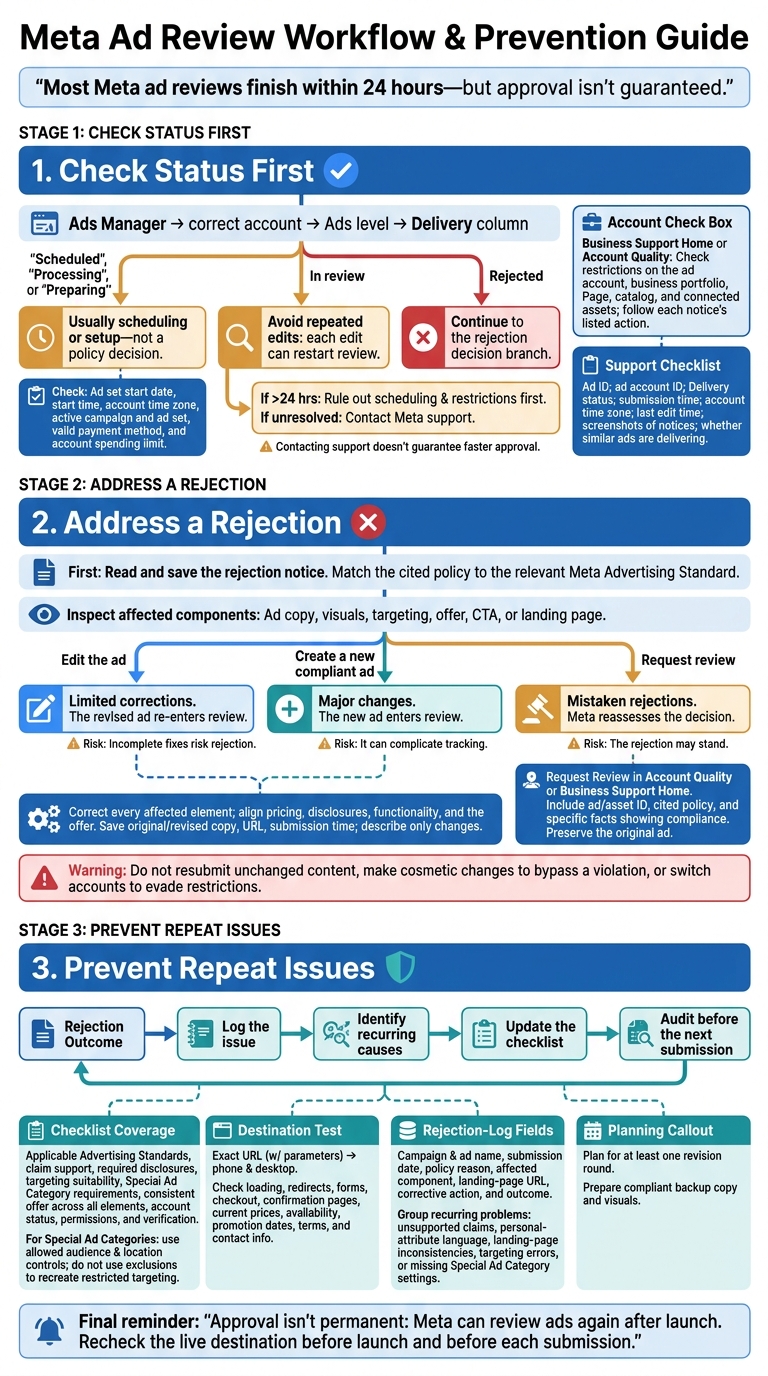
Most Meta ad reviews finish within 24 hours - but approval isn’t guaranteed. My first step is to check the Delivery column in Ads Manager, then rule out scheduling, payment, or account restrictions before treating the delay as a review problem.
Here’s how I approach the process:
- Before submitting: Check the ad, targeting, and landing page against Meta’s Advertising Standards.
- While waiting: Avoid repeated edits that can restart review. If the delay persists, contact support with the ad ID and submission details.
- After a rejection: Fix the cited issue or request another review if the decision seems wrong.
- Before the next launch: Log rejection reasons, check for repeat issues, and leave time for revisions.
<u>Approval isn’t permanent.</u> Meta can review ads again after launch, so I check the destination page as well as the ad - not just once, but before each submission.
Meta Ad Review: Status Checks, Fixes, and Next Steps
Step 1: Check Ad Status and Review Delays
Find Your Ad’s Status in Ads Manager
Start with the Delivery column to tell a review delay apart from a scheduling or setup issue. Open Ads Manager, select the correct account, and check Delivery at the Ads level.
Statuses such as Scheduled, Processing, or Preparing usually point to scheduling or setup - not a policy decision. A paused campaign or inactive ad set can also stop delivery without a review issue.
Check Start Times and Account Restrictions
Check the ad set’s start date, start time, and the ad account’s time zone. Even an approved ad won’t run before its scheduled start. Confirm that the campaign and ad set are active, the payment method is valid, and the account hasn’t reached its spending limit.
Next, open Business Support Home or Account Quality. Look for restrictions on the ad account, business portfolio, Page, catalog, or connected assets. Read each notice and complete the listed action. If nothing here blocks delivery, the delay is more likely tied to review.
What to Do When Review Takes Longer
If the ad still shows In review after 24 hours, rule out scheduling issues and account restrictions first.[2][4] Avoid repeated edits while you wait: each edit can restart the review.
If the review remains unresolved, contact Meta support. Include the ad ID, ad account ID, Delivery status, submission time, account time zone, last edit time, screenshots of notices, and whether similar ads are delivering.
Contacting support doesn’t guarantee faster approval. These details help support determine whether the problem involves review, setup, or an account-level restriction.
sbb-itb-db0d145
Step 2: Address an Ad Rejection
If Meta rejects your ad, identify the exact policy issue before making changes.
Read and save the rejection notice in Ads Manager, Account Quality, or Business Support Home. Match the cited policy to the relevant Meta Advertising Standard. Check only the affected ad copy, visuals, targeting, offer, CTA, or landing page - not unrelated campaign settings.[1][2]
Decide Whether to Edit, Replace, or Request Review
Let the rejection reason and the scope of the fix guide your next step. Edit the existing ad for a clear, limited violation. Create a new compliant ad for major changes. Request review if the ad appears compliant or the rejection seems mistaken. Both edited and new ads enter review again, so address the underlying issue before resubmitting.[5][2]
| Action | Best for | What happens next | Main risk |
|---|---|---|---|
| Edit the ad | Limited corrections | The revised ad re-enters review | Incomplete fixes risk rejection |
| Create a new compliant ad | Major changes | The new ad enters review | It can complicate tracking |
| Request review | Mistaken rejections | Meta reassesses the decision | The rejection may stand |
A replacement ad must correct the underlying violation. Don’t duplicate rejected content with cosmetic changes, hide the same prohibited claim, or switch accounts to bypass restrictions. Any separate account-level restrictions need to go through the appropriate review process.[6][7]
Submit Fixes or Request Another Review
Before publishing the revised or new ad, correct every affected element, including repeated instances of the issue. Check that pricing, disclosures, functionality, and the offer all line up. Save the original copy, revised copy, destination URL, and submission time. Describe only the changes you actually made.[2]
If the rejection appears to be an error, select Request Review in Account Quality or Business Support Home. Include the ad or asset identifier, the cited policy, and specific facts showing compliance. Don’t resubmit unchanged content.[5][8]
After fixing or appealing the ad, audit your assets for the same issue. Use that issue pattern to check future ads before submission.
Step 3: Reduce Repeat Review Issues
Use a Pre-Submission Compliance Checklist
After a rejection, add the issue to your pre-launch checklist so it doesn’t happen again. Include four fields: item checked, evidence/URL, owner, and completion date. Cover applicable Meta Advertising Standards, support for claims, required disclosures, targeting suitability, and any Special Ad Category requirements. Check that the copy, images or video, call to action, and destination all describe the same offer. For Special Ad Categories, stick to Meta’s allowed audience and location controls. Don’t use exclusions to recreate restricted targeting.[5][9][10]
Test the exact destination URL, including tracking parameters, on both a phone and desktop. Check loading, redirects, forms, checkout, and confirmation pages. Prices, availability, promotion dates, terms, and contact information should be current and easy to find. Before submitting, also check account status, permissions, and verification.[5][9][7][3]
Leave time for corrections - not just the first review. Plan for at least one revision round, and have backup ad copy and visuals ready that meet policy requirements. Check the live destination again before launch; Meta may review ads again after they go live.[5][9]
Audit Ads, Landing Pages, and Account Setup
Keep a rejection log that records the campaign and ad name, submission date, policy reason, affected component, landing-page URL, corrective action, and outcome. Group entries by recurring problems: unsupported claims, personal-attribute language, landing-page inconsistencies, targeting errors, or missing Special Ad Category settings. Track account-level restrictions separately so the team doesn’t confuse an access or verification problem with an issue in the ad’s copy or visuals.[7][11]
Use the log to identify repeat problems and address those first in future submissions. Add each recurring issue to the checklist, and follow a documented audit process to catch policy problems before resubmitting.
Conclusion: Check Status, Fix Issues, and Plan Ahead
Check the ad’s status first to tell a review delay apart from a scheduling or account issue. If the ad isn’t in review, the fix is usually in the setup or account status - not the review queue.
For a rejected ad, fix the cited policy issue before resubmitting. If you think the decision is wrong, save the original ad before requesting another review through Business Support Home.
If problems keep coming back, look beyond one-off fixes. Check for shared causes across ads, destinations, and account settings.
FAQs
Which ad edits trigger a new review?
Any change to an ad triggers a new review by Meta’s automated systems. That includes edits to the ad’s visuals, copy, targeting options, or billing information [1][2]. Duplicating or publishing an ad also triggers another scan [2].
If you edit and resubmit a rejected ad, it goes through the full review process again. Meta can also re-review ads at any time - even if you haven’t made any recent changes [1].
Can I appeal if Request Review is unavailable?
If Request Review isn’t available, visit Meta Business Support Home for other appeal options. Don’t delete the rejected ad - you’ll lose the option to file a manual appeal. If standard support channels don’t resolve the issue, contact Meta’s live support team.
Dancing Chicken offers Meta Ads consulting and ad account audits to help businesses address ad rejections and keep campaigns compliant with Meta’s policies.
Can repeated rejections affect my ad account?
Yes. Repeated ad rejections can hurt your account’s quality score as violations add up. This may reduce ad delivery, increase costs, or lead to asset restrictions. Severe cases can result in permanent account suspension.
Deleting or editing a rejected ad doesn’t erase the violation.
To keep your account in good standing, check the Account Quality dashboard regularly and make sure your content follows Meta’s advertising policies.