Meta Ads Stuck in Review: Causes and Next Steps

Meta Ads Stuck in Review: Causes and Next Steps
Meta says most ads are reviewed within 24 hours - but that isn’t a deadline. If your ad seems stuck, I’d first check its individual Delivery status in Ads Manager, then look for account restrictions, payment issues, or verification requests.
Here’s the approach I recommend:
- Confirm the problem: In review, rejected, and active with no impressions need different fixes.
- Avoid extra edits and duplicates: They can trigger another review rather than shorten the wait.
- Document and escalate: Save the ad ID, timestamps, and screenshots. After the 24-hour checkpoint, check service status and contact support if nothing explains the delay.
- Prepare the next submission: Check ad copy, links, account details, and required settings before publishing.
My rule: <u>follow the status, not guesses</u>. Fix a known issue, keep one support case, and don’t count on anyone to guarantee approval.
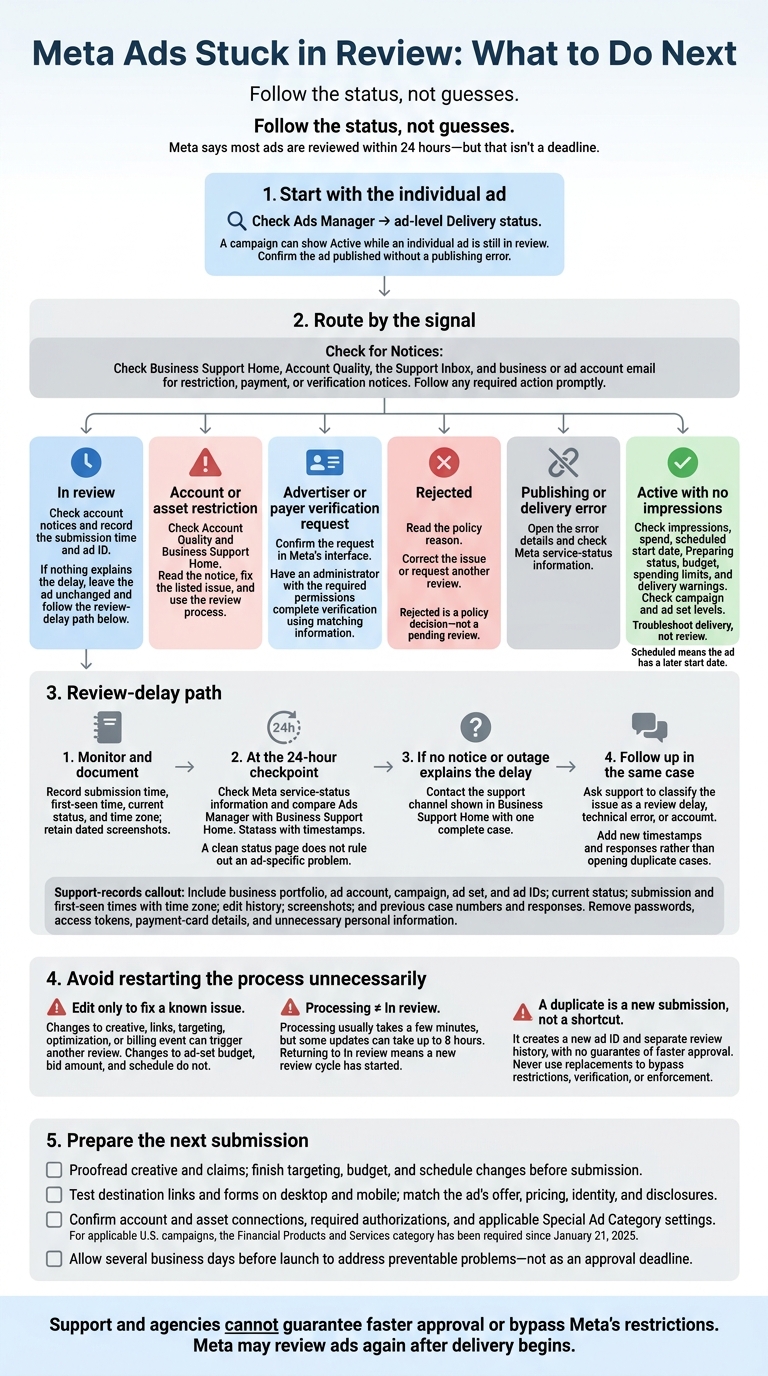
Meta Ads Stuck in Review: What to Do Next
1. Check Ad Status and Account Notices
Start with the ad-level Delivery status to tell a review delay apart from an account or delivery issue.
Check the Individual Ad’s Delivery Status
A campaign can show Active while an individual ad is still In review. Check the ad’s status, hover over delivery icons for details, and confirm that the ad was published without a publishing error.
Active doesn’t guarantee impressions. Check impressions and spend, then look for a scheduled start date, Preparing status, budget or spending limits, and delivery warnings. Scheduled means the ad has a later start date. Rejected means Meta has made a policy decision - the ad isn’t waiting for review. Check the campaign and ad set levels to find what’s blocking delivery.
Check Account Restrictions and Verification Requests
Check Business Support Home, Account Quality, the Support Inbox, and the business or ad account’s email. Look for notices affecting the Page, business portfolio, advertiser, payer, or connected assets - not just the ad account. Labels and access depend on your role, so an administrator may need to check settings you can’t see.
Confirm any verification request in Meta’s interface and check which entity must complete it. Review permissions, billing, targeting, destination pages, and any applicable Special Ad Category settings, too.
Meta may review the ad’s text, images, video, targeting, and landing page. A delay alone doesn’t tell you which part, if any, needs attention.
Choose the Next Step for Each Status
| Signal | Where to check | Next step |
|---|---|---|
| Ad-level In review | Ads Manager, ad-level Delivery | Monitor the delay and escalate if it passes the normal review window. |
| Account or asset restriction | Account Quality and Business Support Home | Read the notice, fix the listed issue, and use the review process. |
| Advertiser or payer verification request | Verification notices and relevant business settings | Have an administrator with the required permissions complete verification using matching information. |
| Policy rejection | Ad-level rejection details and account notices | Read the reason, correct the issue, or request another review. |
| Publishing or delivery error | Ads Manager error details and Meta service-status information | Open the error details and check service status. |
| Active with no impressions | Delivery columns, schedule, budget, and spending controls | Troubleshoot delivery, not review. |
If none of these signals explain the delay, leave the ad unchanged and document the timeline before escalating.
sbb-itb-db0d145
2. Avoid Unnecessary Edits and Duplicate Submissions
Make Changes Only to Fix a Known Issue
If an ad needs a correction, make the smallest change needed. Edit to fix a problem - not to restart or speed up review. Meta says changes to creative, links, targeting, optimization, or billing event can trigger another review. Changes to ad-set budget, bid amount, and schedule do not. Check the status after saving.[2]
Change only the fields tied to the issue. Save screenshots or exports of the previous version, and record the ad ID, field changed, reason, exact time, and time zone. Editing several unrelated fields at once makes it harder to tell which correction mattered.
Confirm that the update saved before editing again. Processing is not the same as In review. Processing usually takes a few minutes, but some updates can take up to 8 hours. If the ad returns to In review, a new review cycle has started.[5]
Do Not Use Duplicate Ads to Bypass Review
A duplicate is a new submission, not a shortcut. It creates a new ad ID and a separate review history, with no guarantee of faster approval.[4] If copies already exist, keep their IDs and status records, choose one version to use, and stop creating duplicates.
Edit the existing ad when the correction is small and Meta allows it. A corrected replacement may make sense when you cannot edit the original, its structure must change, or Meta tells you to submit a new ad. Submit the compliant version once and keep the original rejection or error details. Never use a replacement to bypass an account restriction, verification requirement, or enforcement decision.[4][7]
3. Document the Delay and Contact Support
If status checks and account notices don’t explain the delay, document the issue before contacting support.
Record Times, IDs, and Changes
Keep a single log with the business portfolio ID, ad account ID, campaign ID, ad set ID, ad ID, current Ads Manager status, submission time, first-seen time, and time zone. These details help distinguish a normal review delay from a policy, verification, or technical block. Use U.S. date and time formatting:
November 10, 2026, at 9:00 a.m. ET.
Attach dated screenshots of the status, delivery settings, account notices, and error messages. Include the relevant edit history, plus any previous support case numbers and responses.[10][13]
Note launch deadlines and the actual impact on your business, but keep expected results separate from reported delivery. Only report spend, clicks, or impressions if Ads Manager shows them. Remove passwords, access tokens, payment-card details, and unnecessary personal information from attachments.
Check Service Status and Decide When to Escalate
Before escalating an individual ad case, check Meta’s service-status information for reported outages or publishing failures. Compare the statuses in Ads Manager and Business Support Home. If they conflict, save both with timestamps. A clean status page doesn’t rule out an ad-specific problem.[9][6]
If you see a restriction, payment, or verification notice, follow the action shown promptly. Don’t treat it as a normal review delay.[9][6]
Use the 24-hour mark as a checkpoint.[2] If no account notice or outage explains the delay, contact support with your log. Support can investigate, but it can’t guarantee faster approval.
Submit One Support Request With Your Records
Use the support channel shown in Business Support Home to send your log and screenshots in one complete case, rather than opening duplicates. Ask support to classify the issue as a review delay, technical error, or account-level problem. Include the steps you’ve already taken and what you found when checking service status.[11][9][3][12]
Whenever possible, follow up in the same case with new timestamps and responses. Have an authorized administrator submit requests involving business, advertiser, payer, or access data.[11][9][3][12]
4. Prevent Avoidable Review Problems
If delays keep happening, fix the launch process before your next submission.
Check Ads and Account Details Before Submitting
Submit one complete, proofread version. Check the primary text, headline, description, and call to action. Review images, videos, and claims against Meta’s Advertising Standards, confirm supporting evidence, and save the final files. Finish changes to targeting, budget, and schedule before submitting.[2][4]
Test the destination on desktop and mobile, including links and forms. Make sure the offer, pricing, business identity, and call to action match the ad, with clear disclosures. Fix broken redirects, unexpected login walls, and disruptive pop-ups. Record the tested URL and test date.[8][15]
Confirm the correct Special Ad Category and any required authorizations. For applicable U.S. campaigns, Meta has required the Financial Products and Services category since January 21, 2025. Also check connections for the Page, Instagram account, business portfolio, ad account, domain, and pixel or dataset.[16][17][18]
Allow several business days before launch to address preventable problems. This lead time is not an approval deadline. Meta may review ads again after delivery begins.[2][14]
Consider an Account Audit for Repeated Problems
When reviews keep stalling, look for setup mistakes that may be repeating.
Dancing Chicken offers Meta Ads consulting and account audits to find setup issues and organize documentation. This can help pinpoint recurring problems behind stalled reviews. No agency can control Meta’s review decisions, bypass restrictions, or guarantee faster approval.
Conclusion: Let the Ad Status Guide Your Next Step
Before making changes, check the ad’s Delivery status in Ads Manager and open its details. Let that status guide what you do next:
- Still within the normal review window: Monitor the ad and record its submission time and ad ID.
- Pending beyond the normal window: Check Account Quality, Business Support Home, and Meta service status. If the issue remains unresolved, contact support with your records.
- Rejected: Read the policy reason, then fix the issue or request another review.
- Account or asset restriction: Follow the notice, submit the required review, and complete any required verification or security steps.
If the status is unclear, hold off on more edits until you have a new reason to act. Once it’s clear, follow that signal rather than guessing why the review is delayed.
Keep your timeline and support notes together. Avoid duplicate ads - they can make troubleshooting harder.
FAQs
What if my ad status conflicts with account notices?
Check your Account Quality dashboard in Business Support Home first. It shows current restrictions, disapproved ads, and active appeals.
If an ad’s status conflicts with an account notice, don’t rely on the ad status alone. Account-level alerts may flag policy or security issues that override an individual ad’s status. Review these notices promptly to see whether you need to update payment methods, complete business verification, or address policy compliance issues.
How should I document delays after multiple edits?
Keep a consistent account history. Log edits, attempted fixes, performance metrics, and support communications to spot patterns in review times. Use Meta’s Business Support Home and Account Quality dashboard to track appeals and check rejection notices [1][2].
Meta considers compliance across your account’s history. Deleting or duplicating rejected ads won’t erase violations. It may also make troubleshooting harder or lead to more account-level scrutiny [1].
What if support hasn’t resolved my review delay?
If you’ve contacted support but your review is still delayed, professional help may be worth considering. Dancing Chicken specializes in Meta Ads and offers consulting and ad account audits to help pinpoint what’s holding up the review.
Their team can check your account status, walk you through complex compliance issues, and help you plan how to address restrictions while keeping future campaigns in line with Meta’s policies.