How to Troubleshoot Rejected Meta Ads

How to Troubleshoot Rejected Meta Ads
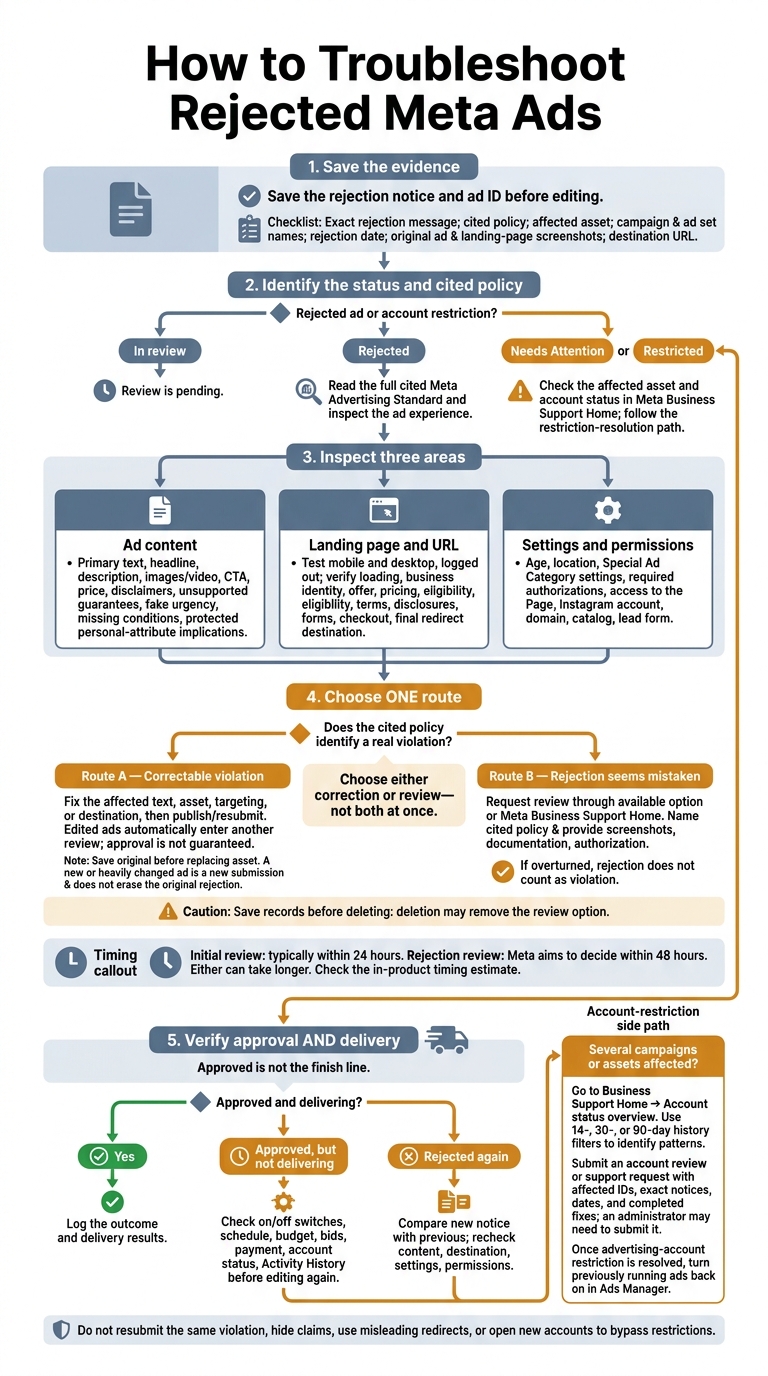
Before I change a rejected Meta ad, I save the rejection notice and ad ID, then check the cited policy. That tells me whether to fix a violation or request another review - not do both at once.
Here’s the process I follow:
- Check the cause: Review the ad’s text, images, claims, landing page, targeting, and permissions.
- Choose the next step: Correct the issue and resubmit, or request review with documents that support my case.
- Confirm the result: Check that the ad is approved and delivering. If rejections continue, compare notices and check for account restrictions.
Meta reviews most ads within 24 hours, though some take longer. <u>Approval alone isn’t the finish line</u> - I also check impressions and spend to confirm the ad is running.
How to Troubleshoot Rejected Meta Ads
Find the Rejection Reason and Policy
Open the Ad’s Rejection Details
In Ads Manager, find the affected ad in the Delivery column and open its rejection details. If the explanation lacks detail, use the rejection notification to open Meta Business Support Home and check the affected asset and review status.[3][7]
Before making changes, save the exact rejection message, cited policy, affected asset, campaign and ad set names, and rejection date. Take screenshots of the original ad and destination page, and save the destination URL. You’ll have a record to compare with your edits.[6]
Check whether you’re dealing with a rejected ad or an account restriction. Needs Attention or Restricted requires Business Support Home. In review means the review is pending; Rejected points to a policy issue.[4][9]
Use the cited policy to pinpoint the rule before reviewing the ad copy or landing page.
Read the Cited Meta Advertising Standard
Start with the cited rule, then compare it with your ad and landing page. Follow the notice’s policy link or visit Meta’s Advertising Standards. Read the full relevant section - not just its title. Check whether it covers copy, ad visuals, claims, targeting, Special Ad Categories, permissions, restricted products, or the destination page.[4][8]
If the notice is vague, connect the rule to the specific words, visuals, settings, or landing-page content that may violate it. Address each cited policy separately. A compliant headline doesn’t clear the whole ad: Meta can assess the full ad experience, and prior approval doesn’t rule out a later policy issue.[4]
sbb-itb-db0d145
Inspect the Ad, Landing Page, and Settings
Use the cited policy to pinpoint what’s failing: the ad content, destination, or account settings.
Check Ad Text, Visuals, and Claims
Check the primary text, headline, description, ad assets, CTA, price, and disclaimers against the cited policy. Record the suspected issue, affected asset, policy language, and proposed fix.
Flag unsupported guarantees, fake urgency, and missing conditions. Pay close attention to whether the ad implies a protected personal attribute, such as age, health, race, religion, or financial status.[16]
Replace unsupported claims with statements you can back up and that match the service. Save before-and-after versions in the rejection log.
Test the Landing Page and URL
Open the destination on mobile and desktop, preferably while logged out. Make sure it loads, identifies the business, and matches the ad’s offer, price, eligibility requirements, and terms.
Test buttons, forms, checkout, contact details, privacy links, and terms links. Look for errors, intrusive pop-ups, unexpected downloads, and redirects that change or hide the destination.[1][13]
Follow tracking links through to the final URL. Log the redirect chain, test date, device, screenshots, and any mismatches. Keep required disclosures visible on the live page.
Check Targeting, Ad Categories, and Permissions
Review age, location, and Special Ad Category settings. Housing, employment, financial products and services, and some social issue, election, or political ads require special settings or authorization.[5][15]
Verify access to the Page, Instagram account, domain, catalog, and lead form. Log settings fixes separately from account restrictions; changing ad assets alone may not restore delivery.[11][12]
Decide Whether to Edit or Request Review
Match the rejection details to the cited policy, then choose the fastest fix that follows the rules. Choose either correction or review - not both at once.
| Situation | Recommended Action | Review Implication |
|---|---|---|
| Correctable violation | Edit the affected text, image, video, targeting, or destination to meet the cited policy, then publish the changes. | Meta automatically sends the edited ad for another review. Approval is not guaranteed.[3] |
| Asset needs replacement | Save the rejection notice and original asset, then create a replacement that fixes the issue. | A new or heavily changed ad counts as a new submission and must pass review. It does not erase the original rejection.[3] |
| The rejection is likely incorrect | Use the review option in Meta Business Support Home and explain why the ad follows the policy. | Meta rechecks its decision. If the rejection is overturned, it does not count as an ad violation.[3] |
For a fixable issue, update the ad or destination before submitting it for review.
Fix the Violation and Submit Changes
Edit the specific text, ad asset, targeting, or destination that failed the policy check. Fix the affected elements together, then publish the changes in Ads Manager. If the landing page caused the rejection, correct it and resubmit through Meta’s review workflow.[3]
Save the rejection notice, ad ID, and original assets before deleting anything. Deleting the rejected ad may remove your option to request another review. Create a new ad only if you cannot edit the original or need a different asset. Do not use a new ID to resubmit the same violation.[3][17]
Request Review if the Rejection Seems Mistaken
Request review instead of editing again when the rejection does not match the cited policy. Open the review option for the rejected asset in the rejection details or Meta Business Support Home, then submit your request. Name the cited policy and support your case with screenshots, documentation, or authorization records.[3]
Use evidence, not just disagreement. Avoid repeatedly submitting the same unchanged ad while a violation remains unresolved. A review request asks Meta to reconsider a rejection. It is separate from the initial review triggered when you create or edit an ad.[3][4]
Check the in-product timing estimate before following up. Meta says initial reviews are typically completed within 24 hours and aims to decide rejection reviews within 48 hours. Either can take longer.[3][11]
Verify the Outcome and Address Repeat Rejections
Check Review Status and Ad Delivery
After submitting a fix or review request, check two things: Did Meta approve the ad, and is it serving? Review the Delivery column at the campaign, ad set, and ad levels.[20] Each level may show a different status, so open any warning to see what’s wrong. Once approved, confirm that impressions, reach, and spend are increasing.[14] If the ad is approved but isn’t delivering, check campaign settings before editing it again.
If delivery is still zero, make sure the campaign, ad set, and ad are turned on and the schedule has started. Then check whether budget, bids, payment, or account status is blocking delivery.[14][10] Open Activity History to see recorded pauses, edits, and status changes, along with who made them.[18]
Investigate Repeat Rejections and Account Restrictions
If Meta rejects the ad again, compare the new notice with the previous one before making more changes.[2] Look for anything that changed or that you missed. Recheck the copy, visuals, landing page, redirects, targeting, special-ad-category selection, and permissions. Keep a rejection log with dates, IDs, screenshots, versions, fixes, review outcomes, and delivery results. Use Activity History to fill gaps in the timeline.[18]
If several campaigns or assets are affected, go to Business Support Home → Account status overview.[12][19] Check unresolved issues and use the 14-, 30-, or 90-day history filters to spot patterns.[19] Submit an account review or support request through Business Support Home; an administrator may need to submit it.[12] Include the affected IDs, exact notices, dates, and completed fixes. Once the advertising-account restriction is resolved, turn previously running ads back on in Ads Manager.[12]
Rejected Meta Ads: Troubleshooting Checklist
Use this checklist after saving the rejection notice and cited policy.
- Keep a record: Save the rejection notice, ad ID, and screenshots.
- Check the cited policy: Compare it with the ad’s text, visuals, claims, targeting, Special Ad Category settings, and permissions.
- Test the final URL: Open it on desktop and mobile. Check redirects, pricing, disclosures, and whether the offer matches the ad.
- Fix violations and resubmit: If you think the rejection was a mistake, request a review in Business Support Home with a brief explanation based on the policy.[3]
- Log the decision: Check both review status and delivery status to confirm that the ad is approved and delivering.[12]
Don’t hide rejected claims in images, use misleading redirects, or open new accounts to bypass restrictions. Resubmitting unchanged ads or making cosmetic edits won’t fix the issue.[3]
FAQs
What if Meta doesn’t explain my ad rejection?
Check Business Support Home or Account Quality for a link to the policy cited in the violation. If the reason doesn’t apply to your ad, it’s likely an automated error.
Request a manual review through Business Support Home. Include your Ad ID and a short explanation of how your content follows Meta’s advertising policies.
Dancing Chicken can also audit your account to help you stay compliant over time.
What if I can’t request another review?
If you can’t request another review, you may have reached the end of the appeal process for that ad. If the ad is still rejected after a manual review, you generally can’t appeal again.
If your ad keeps getting rejected after you make the suggested changes, Dancing Chicken offers Meta Ads account audits and consulting. These services can help pinpoint underlying issues or policy conflicts and bring your campaigns into compliance with Meta’s standards.
Can repeated ad rejections affect my account?
Yes. Repeated ad rejections can hurt your account quality score, increase advertising costs, limit ad delivery, and lead to business account restrictions or permanent suspension. Meta tracks your compliance history over time, so deleting or duplicating rejected ads won’t clear your record.
Check the Account Quality dashboard regularly and address policy violations before Meta takes stricter action.